How to Block YouTube on Windows 11 (and Windows 10)
Block YouTube on Windows 11 or 10 with an extension, Microsoft Family Safety, the hosts file or DNS. Step-by-step instructions and which method actually works.
You sit down at your PC to start work, open YouTube "for one video", and forty minutes later you're still there. Windows doesn't help: there's no Settings toggle that says "block this website", and the tools that do exist were built for parents rather than for you.
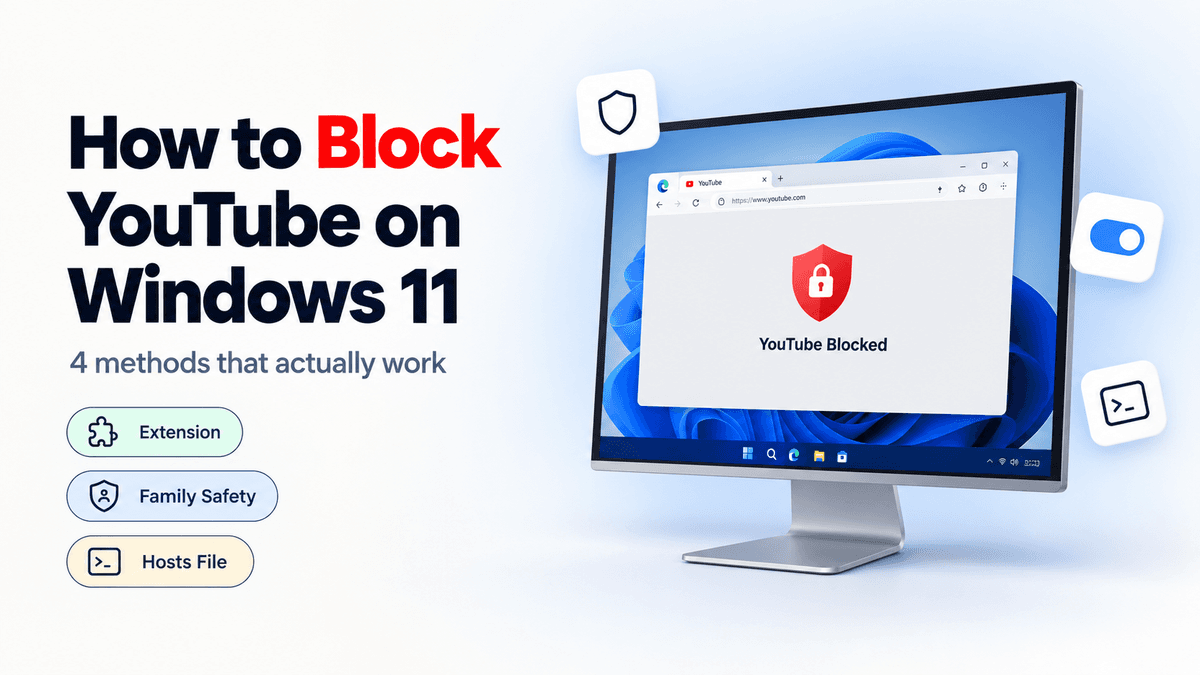
The short version: how you block YouTube on Windows depends on whether you're restricting yourself or a child, and which browser you use. For most people, a browser extension in Chrome, Edge, Brave or Firefox is the most practical option because it can enforce daily limits and schedules. For a child's account, Microsoft Family Safety is the built-in choice, with the caveat that its web filtering only runs through Edge. If you want YouTube gone in every browser on the PC, use the hosts file.
This guide covers all four methods on Windows 11 and Windows 10, including the details that usually make them fail.
What this covers
- Why blocking YouTube on Windows is awkward
- Method 1: Block YouTube on Windows with Obserra
- Method 2: Use Microsoft Family Safety
- Method 3: Block YouTube with the hosts file
- Method 4: Block it on your router or DNS
- Which option fits your PC?
- Keep YouTube useful while cutting the noise
- Frequently asked questions
Why blocking YouTube on Windows is awkward
Windows 11 has no built-in website blocker for adult accounts. What it has is Microsoft Family Safety, which is designed to protect children. Its web filtering works through Edge, and when the filter is on it blocks unsupported browsers so a child can't switch to Chrome to get around it. That's useful for a parent and useless for an adult who just wants Chrome to stop tempting them.
So the first question is not "which tool blocks YouTube". It's "who am I restricting, and where do they watch?" A self-control setup and a parental-control setup need different answers.
If you're on a Mac instead, our guide to blocking YouTube on a Mac covers Safari, Screen Time and the hosts file.
Method 1: Block YouTube on Windows with Obserra
Obserra is a free extension for Chrome, Edge, Brave and Firefox on Windows. It's the best fit if you want YouTube to stay useful but stop eating your day, because it works like a set of rules rather than a wall.
-
Create your account. Register at obserra.com with your email or Google account.
-
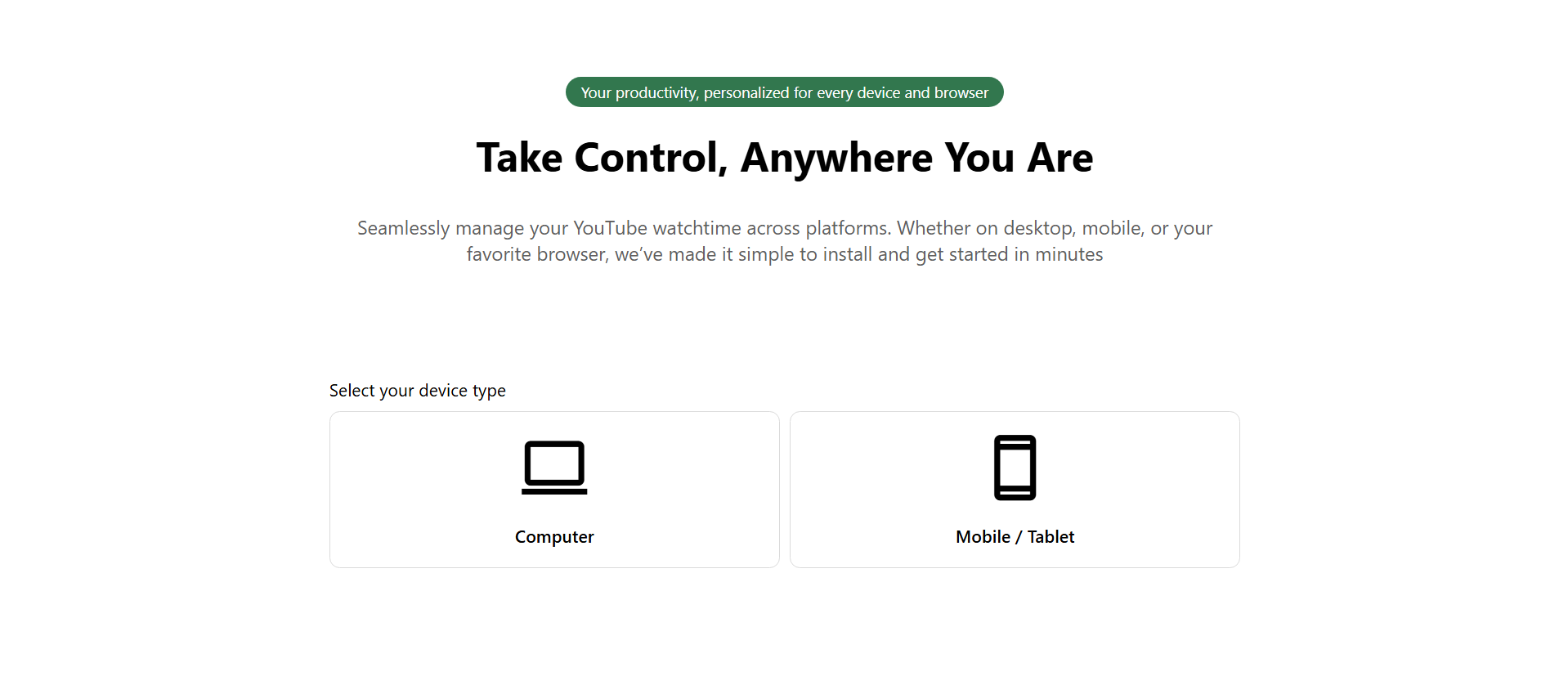
Install the extension. Follow the download instructions for Chrome, Edge, Brave or Firefox, then sign in with the same account. Install it in the browser you actually watch YouTube in; an extension in Chrome won't affect Edge.
-
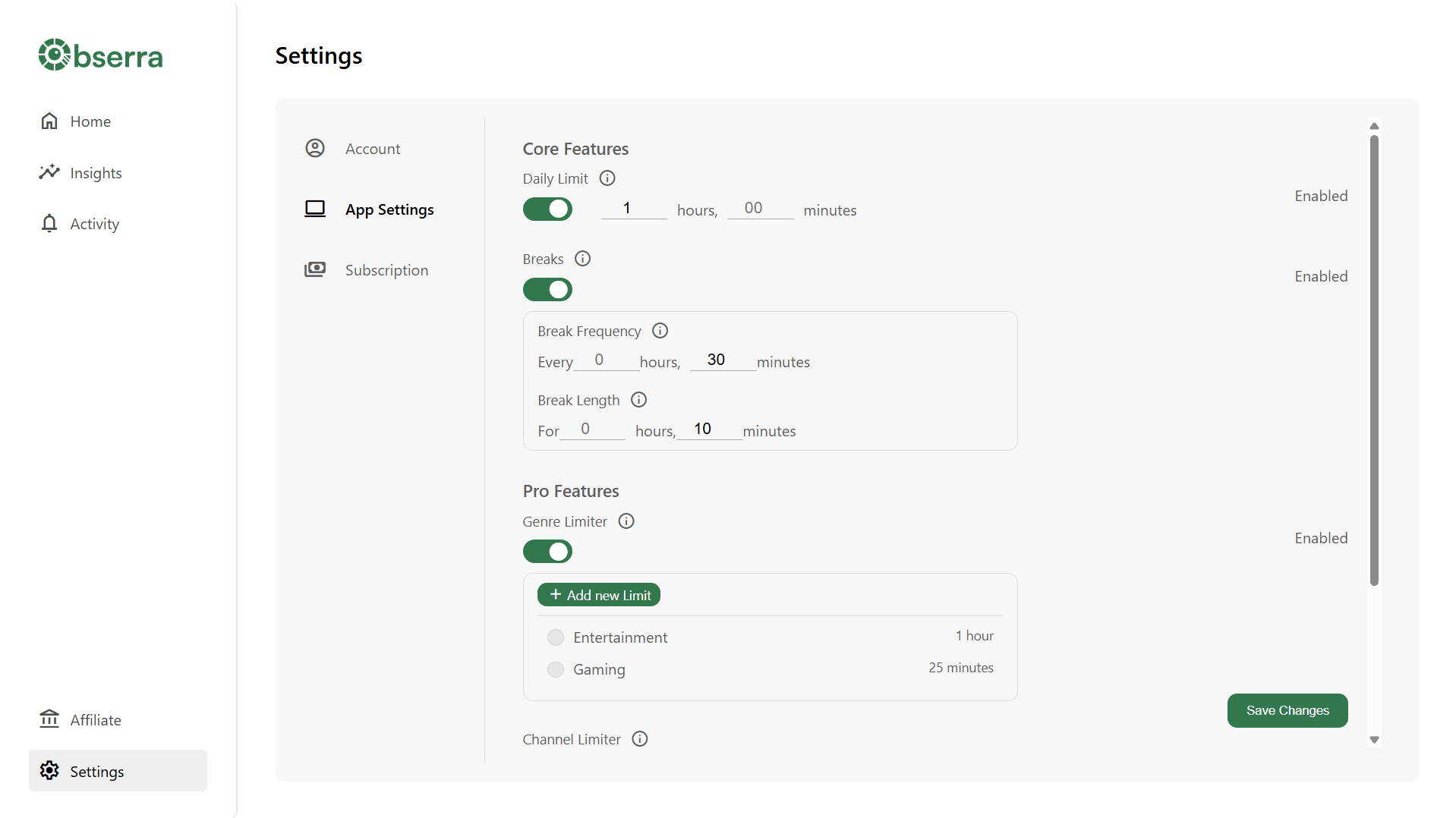
Choose how YouTube should be blocked. Open the settings page and enable the option that matches your problem:
- Daily Limit caps your total watch time for the day.
- Daily Video Limit caps the number of videos, which suits the "just one more" loop better than a minutes-based limit.
- Time Blocks block YouTube during hours you choose, such as 09:00 to 17:00.
- Channel and genre limits restrict only the channels or types of content that consume most of your time.
- Client Modifications hide the homepage feed, sidebar suggestions, end screens and Shorts.
-
Test it. Open YouTube in that browser and check the limit applies. If you set a Time Block, test during the blocked hours rather than outside them.
The limitation is the same as on any computer: the extension only controls the browser it's installed in. If you also watch YouTube in another browser, the Microsoft Store app, or on your phone, those need their own setup. The Obserra iOS and Android apps cover limits on mobile.
Ready to set it up? Create a free Obserra account, install the extension in the browser you use, and pick your first limit.
Method 2: Use Microsoft Family Safety
Family Safety is the right tool when you're restricting a child's Windows account. It can block YouTube in Edge, and it can block other browsers so the filter can't be sidestepped. It is not a self-control tool: the account you're filtering needs to be a child account in your Microsoft family group, and you can't apply these filters to your own adult account.
- Go to family.microsoft.com and sign in with the Microsoft account that manages the family group.
- Select the child's name, then open Edge under their devices or choose Content filters.
- Turn on Filter inappropriate websites and searches.
- Under Blocked sites, add youtube.com, www.youtube.com, m.youtube.com, youtu.be and music.youtube.com.
- On the child's PC, sign in with the child's Microsoft account and open Edge. Policies sync at sign-in and at browser launch, so sign out and back in if the block doesn't appear straight away.
- Keep the child's Windows account as a standard user, not an administrator. An admin account can change system settings and undo your work.
Two useful extras: Only use allowed websites turns the filter into an allowlist, which is stricter but more work to maintain, and Edge Kids Mode provides a PIN-protected browsing mode with its own allowlist. Both are designed for children.
Caveats worth knowing before you rely on it: the filter applies in Edge and blocks unsupported browsers while it's on; it follows the child's Microsoft account rather than the PC, so it covers supported devices they sign into; and it doesn't control a phone using mobile data. For a family setup that's usually fine. For your own PC it's the wrong tool.
Method 3: Block YouTube with the hosts file
The hosts file is the nuclear option. It tells Windows where to find a domain before DNS does, so you can point YouTube's domains at your own machine and make every browser on that PC fail to load them.
Before you start, know that this blocks YouTube everywhere on the computer, including tutorials and embeds. It's all-or-nothing, with no schedules or limits. It also only affects that PC.
- Click Start, type Notepad, right-click it, and choose Run as administrator. Without admin rights you won't be able to save the file.
- In Notepad, choose File > Open and navigate to C:WindowsSystem32driversetc. Change the file type dropdown from Text Documents to All Files so the hosts file appears.
-
Add these lines at the bottom. Include both the IPv4 and IPv6 entries, because Windows resolves them separately and blocking only IPv4 is a common reason YouTube still loads:
0.0.0.0 youtube.com
::1 youtube.com
0.0.0.0 www.youtube.com
::1 www.youtube.com
0.0.0.0 m.youtube.com
::1 m.youtube.com
0.0.0.0 music.youtube.com
::1 music.youtube.com
0.0.0.0 youtu.be
::1 youtu.be - Save with Ctrl + S, then close Notepad.
-
Open Command Prompt and flush the DNS cache:
ipconfig /flushdns - Restart your browser and try YouTube. If it still loads, see the secure DNS note below.
If YouTube still loads: Chrome, Edge and Firefox use DNS over HTTPS (secure DNS) by default in many regions, and that can bypass the hosts file entirely. Turn it off in the browser you're testing:
- Chrome: Settings > Privacy and security > Security > turn off Use secure DNS.
- Edge: Settings > Privacy, search, and services > Security > turn off Use secure DNS.
- Firefox: Settings > Privacy & Security > DNS over HTTPS > Off.
To undo the block, open the hosts file again, delete the YouTube lines, save, and run ipconfig /flushdns. It takes under a minute, which is the honest weakness of this method: it's a barrier, not a commitment device.
Method 4: Block it on your router or DNS
If you want YouTube blocked on the Windows PC and every other device in the house, block it at the router or use a filtering DNS service. Log in to your router's admin page and look for Parental Controls, Website Blocking or Access Restrictions, then add youtube.com to the blocked list.
The block covers every device on the network, but it disappears the moment a device switches to mobile data, and it affects everyone, including people who need YouTube for work or school. For a household that's often the right trade-off. For your own focus, it's usually too broad.
Which option fits your PC?
- You use Chrome, Edge, Brave or Firefox and want limits or schedules: use Obserra. It's the only option here that can cap your watch time, block work hours, or limit just Shorts and specific channels.
- You're restricting a child's Windows account: use Microsoft Family Safety, keep the account as a standard user, and rely on Edge filtering.
- You want YouTube gone in every browser on one PC: edit the hosts file and turn off secure DNS if necessary.
- You want to cover the whole household: block it at the router or with a filtering DNS service, then use an extension on your own machine for more control.
Keep YouTube useful while cutting the noise
If you still need YouTube for work or study, don't ban the whole site. Disable Shorts, hide the homepage feed and end screens, and keep search and subscriptions. On Windows, that works in Chrome, Edge, Firefox and Brave wherever Obserra is installed.
For the details, see how to limit and block YouTube Shorts and how to block YouTube recommendations.
Frequently asked questions
Does Windows 11 have a built-in website blocker?
Not for adult accounts. Microsoft Family Safety can filter websites for child accounts, and its web filtering runs through Edge. For your own PC you need an extension or the hosts file.
Why does YouTube still load after I edited the hosts file?
Three common reasons: the browser is using secure DNS and bypassing the hosts file, the IPv6 entries are missing, or the browser has cached the old lookup. Turn off secure DNS, add the IPv6 lines, and run ipconfig /flushdns again.
Can I block YouTube only during work hours on Windows?
Yes, with Obserra's Time Blocks. Set a range such as 09:00 to 17:00 and YouTube is blocked in that browser during those hours. See our guide to blocking YouTube at certain times.
Does Microsoft Family Safety work with Chrome?
No. Its web and search filters are enforced in Edge. When filtering is on, unsupported browsers are blocked so a child can't bypass it, which is why it works for parental controls but not for adult self-restriction.
Does the hosts file block the YouTube app on my phone?
No. It only affects the Windows PC you edited. To block YouTube on a phone, use Screen Time on iOS, Digital Wellbeing or a blocker on Android, or block it at the router or DNS level.
Can I block YouTube on a work PC without admin rights?
A browser extension usually installs per user and doesn't need an administrator password. The hosts file and Microsoft Family Safety both require admin access, so they aren't options on a locked-down machine.
How do I unblock YouTube after editing the hosts file?
Open the hosts file as administrator, delete the YouTube lines, save, and run ipconfig /flushdns. If you use secure DNS, you don't need to turn it back on unless you want it.
Block the tab before it becomes an hour
Blocking YouTube on Windows isn't complicated. The hard part is choosing a method you won't undo the moment you're bored. If you use Chrome or Firefox, install Obserra and set a limit or a work-hours block. If you're setting up a child's PC, use Family Safety and keep their account as a standard user. If you need YouTube gone in every browser, edit the hosts file and don't rely on willpower to keep it there.
Create a free Obserra account, install the extension in your browser, and set your first limit. It takes about five minutes, and unlike the hosts file, you can adjust it when your schedule changes.
Keep Reading
How to Block YouTube on a Mac (Safari, Chrome and System-Wide)
Block YouTube on your Mac in Safari, Chrome or every browser. Compare Screen Time, the hosts file and a browser extension, with step-by-step instructions.
Read article
How to Block YouTube Recommendations (Homepage, Sidebar and End Screens)
YouTube has no single switch to block recommendations. Here's how to remove the homepage feed, sidebar suggestions and end-screen videos on desktop and mobile.
Read article
How to Block YouTube at Certain Times for Work or Study
Learn how to block YouTube at certain times for work or study. Set up daily schedules, leave room for breaks, and check which options work on your device.
Read article


