How to Block YouTube Recommendations (Homepage, Sidebar and End Screens)
YouTube has no single switch to block recommendations. Here's how to remove the homepage feed, sidebar suggestions and end-screen videos on desktop and mobile.
You open YouTube to check one thing. Not to browse, just a quick look. Twenty minutes later you've watched a video essay about a topic you've never cared about, and the thing you actually opened YouTube for is still waiting in another tab.
The short answer: YouTube doesn't provide one setting that turns recommendations off. You can make them less personal by pausing your watch history and turning off autoplay, but to actually remove the homepage feed, the sidebar and the videos at the end of a clip, you need a browser extension. In Obserra, open Settings, go to Client Modifications, and enable Hide Recommended Videos, Hide Sidebar Recommended Videos and Hide End Video Suggestions.
This guide explains what each recommendation surface is, which ones YouTube lets you control for free, and how to remove the rest. It also covers the phone, where most of the damage happens and where the answer is more limited than you might expect.
In this guide
- The four places YouTube recommends videos
- What YouTube lets you block for free
- How to block recommendations with Obserra
- What about the YouTube app on your phone?
- Which setup should you choose?
- What still shows up after you block them
- Frequently asked questions
The four places YouTube recommends videos
When people say they want to block YouTube recommendations, they usually mean the homepage. But recommendations appear in four different places, and hiding one does not hide the others.
- The homepage feed. The wall of thumbnails you see when you open YouTube. It is built entirely from what the algorithm thinks you will click next.
- The sidebar on a watch page. The list of suggested videos beside or below the player. This is often where a single video turns into an evening.
- The end screen. The suggestions that appear over the last few seconds of a video, usually pointing at something closely related to what you just watched.
- Autoplay. The next video that starts on its own if you don't stop it. It is a recommendation you never had to click.
This matters because each surface leads into the next. You finish a video, the end screen offers another, the sidebar refills with similar clips, and autoplay starts the next one before you have made a decision. Removing only the homepage still leaves three ways to fall back in.
What YouTube lets you block for free
YouTube's built-in controls are worth using because they work everywhere, including on devices where you can't install an extension. But they change what recommendations are based on. They don't remove the recommendation areas themselves.
Pause your watch history
On a computer, click your profile picture, open Settings, then History & privacy, and choose Pause watch history. On mobile, the same option is under your profile picture, then Settings, then History & privacy.
This is the closest YouTube gets to turning recommendations off. With watch history paused, the homepage becomes much less personal and you'll see more generic suggestions. The recommendation areas are still there, though, and the sidebar still appears on watch pages.
Turn off autoplay
On a watch page, use the autoplay toggle in the player controls. On mobile, it's in the player settings menu. This stops one video from rolling into the next, but it doesn't remove any of the recommendations you can click.
Use "Not interested" and "Don't recommend channel"
Open the three-dot menu on a recommended video and choose Not interested, or Don't recommend channel if a whole channel keeps appearing. This trains the feed over time. It's useful for cleaning up one topic that keeps pulling you in, but it won't give you a YouTube without recommendations.
Clear your watch history
Clearing your history resets the feed, which can be useful if the recommendations have drifted somewhere you don't want them. It's a one-off reset, not a block: as you keep watching, the recommendations rebuild.
What's missing is a "hide recommendations" switch. That is a product decision rather than an oversight, because recommendations are how YouTube keeps people watching. If you want them gone rather than just less personal, you need something that changes the page itself.
How to block YouTube recommendations with Obserra
Obserra is a free browser extension for Chrome, Edge, Brave and Firefox. Its Client Modifications change the parts of YouTube you see. They don't set a time limit on your behalf; they remove the surfaces that pull you back in.
-
Create an account and install the extension. Register at obserra.com, then follow the download instructions for your browser. Sign in with the same account, and use the browser you actually watch YouTube in. An extension installed in Chrome won't affect a separate Firefox session.
-
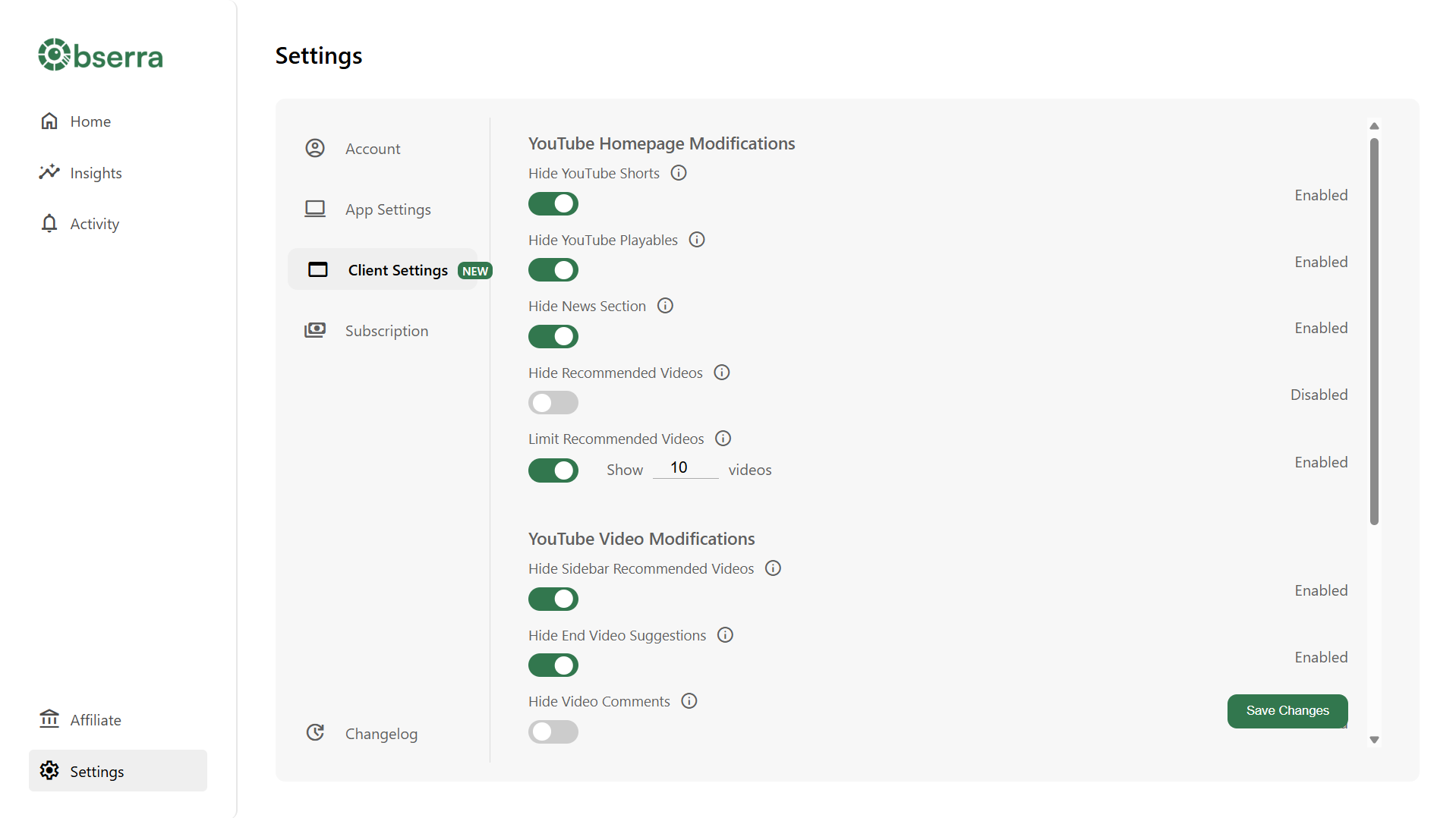
Open Client Modifications. Go to the Settings page and find Client Modifications. Each option changes what YouTube shows in the browser where the extension is installed.
-
Hide the homepage feed. Enable Hide Recommended Videos. If you still want a little discovery, use Limit Recommended Videos instead. Hide removes the feed completely; Limit caps how many videos appear.
-
Remove the watch-page sidebar. Enable Hide Sidebar Recommended Videos. This is the setting that stops a single search result from turning into a chain of related videos.
-
Remove the end screens. Enable Hide End Video Suggestions. The video will finish without offering you the next one.
-
Decide what to do about Shorts. Shorts are recommendations in a different format, so they have their own settings. Use Hide YouTube Shorts to remove them from the homepage or Disable YouTube Shorts to remove them entirely. We compare both options in our Shorts guide.
-
Check your work. Reload youtube.com and open a video. You should see a homepage without the video wall, a watch page without the sidebar, and a video that ends without suggestions. Search, your subscriptions and playlists should all still work normally.
If you want to keep a small amount of serendipity, Limit Recommended Videos is the compromise: it caps how many videos appear instead of removing them all. Pair it with a daily time limit so the feed isn't the only thing standing between you and an hour of watching.
What about the YouTube app on your phone?
This is the part most guides skip. The YouTube app on iOS and Android doesn't let you hide the home feed, and a browser extension can't change an app's interface. Obserra's iOS and Android apps handle daily limits and insights, but the Client Modifications that hide recommendations are part of the browser extension.
So on your phone you're working with smaller levers: turn off autoplay, pause watch history, and mark videos as not interested. If the home feed is where you lose time, the more effective move is to remove the app from your home screen and use YouTube in a browser where you can install a blocker, or set a Shorts limit and a daily limit so each session has a hard ending.
That's a less satisfying answer than "install this and the feed disappears", but it's the accurate one. No extension can remove a surface that lives inside the YouTube app.
Which setup should you choose?
You don't need to enable everything. Match the settings to the way you actually lose time.
- If you want YouTube to be a search tool: enable Hide Recommended Videos, Hide Sidebar Recommended Videos and Hide End Video Suggestions. The homepage becomes a search box and nothing else.
- If you want a calmer feed with some discovery: enable Limit Recommended Videos, hide the sidebar and end screens, and keep autoplay off.
- If Shorts are the main problem: disable YouTube Shorts and set a daily Shorts limit. The feed can stay if you still use it deliberately.
- If you lose time during work or study: use Time Blocks to protect those hours, then remove recommendations so the evenings are less automatic too.
What still shows up after you block them
Blocking recommendations doesn't break YouTube, and it shouldn't. Here's what to expect:
- Search results and your subscriptions still work. That's the point: you can still find a video when you have a reason to watch one.
- Direct links and channels still work. If you type a channel name or follow a link, YouTube will load it. You're removing the suggestions, not the content.
- Other browsers and the mobile app are separate. The extension only changes the browser it's installed in. Your phone and a second browser stay as they were.
- YouTube redesigns can temporarily break a modifier. Extensions depend on the page's structure, so a YouTube update can make a recommendation area reappear. Check that the extension is enabled and up to date before assuming the setting failed.
- Your watch history is unchanged. Hiding recommendations doesn't delete it or change how the algorithm works. It just stops showing you the results. If you want to limit the history itself, pause or clear it separately.
Frequently asked questions
Does blocking recommendations stop YouTube from tracking what I watch?
No. Hiding the interface doesn't change your account's watch history or the data YouTube collects. If that matters to you, pause or clear your watch history as well; the two settings do different jobs.
Will YouTube still work normally?
Yes. Search, subscriptions, playlists and direct links all keep working. You're removing the automated suggestions, not access to the platform.
Can I do this on a school or work computer?
Only if you're allowed to install browser extensions. If you can't, pause your watch history and turn off autoplay inside your account. Those settings follow the account rather than the device, so they apply wherever you sign in.
Why do recommendations still appear in the sidebar?
Check that Hide Sidebar Recommended Videos is enabled and that you're in the browser where you installed the extension. A different browser, a different profile, or the mobile app won't inherit the setting.
Does this also block YouTube Shorts?
Shorts have their own settings. Use Hide YouTube Shorts to remove them from the homepage, or Disable YouTube Shorts to remove them from YouTube entirely. Our guide to limiting and blocking Shorts covers both.
Is blocking recommendations the same as setting a time limit?
No. Recommendations are how you get pulled in; a time limit decides when you stop. They solve different halves of the same problem, which is why they work better together.
A YouTube that waits for you
You probably don't want to quit YouTube. You want to open it, find what you came for, and leave. Recommendations are the part that makes that difficult, because they answer a question you never asked.
Start with the homepage feed. If that alone gives you back the ten minutes you usually lose, add the sidebar and end screens later. Create a free Obserra account, install the extension, and turn off the feed in Settings > Client Modifications. YouTube will still be there when you actually need it.
Keep Reading
How to Block YouTube at Certain Times for Work or Study
Learn how to block YouTube at certain times for work or study. Set up daily schedules, leave room for breaks, and check which options work on your device.
Read article
A Simple Daily Routine to Limit YouTube Shorts and Improve Focus
A simple daily routine to limit YouTube Shorts and improve focus. Exact times, limits, and tools to make every step automatic and stop losing hours.
Read article
How to Block YouTube on Your Computer: 5 Ways That Actually Work
Learn how to block YouTube on your computer with 5 proven methods - browser extension, device settings, hosts file, or router - and take back your focus.
Read article


