How to Block YouTube at Certain Times for Work or Study
Learn how to block YouTube at certain times for work or study. Set up daily schedules, leave room for breaks, and check which options work on your device.
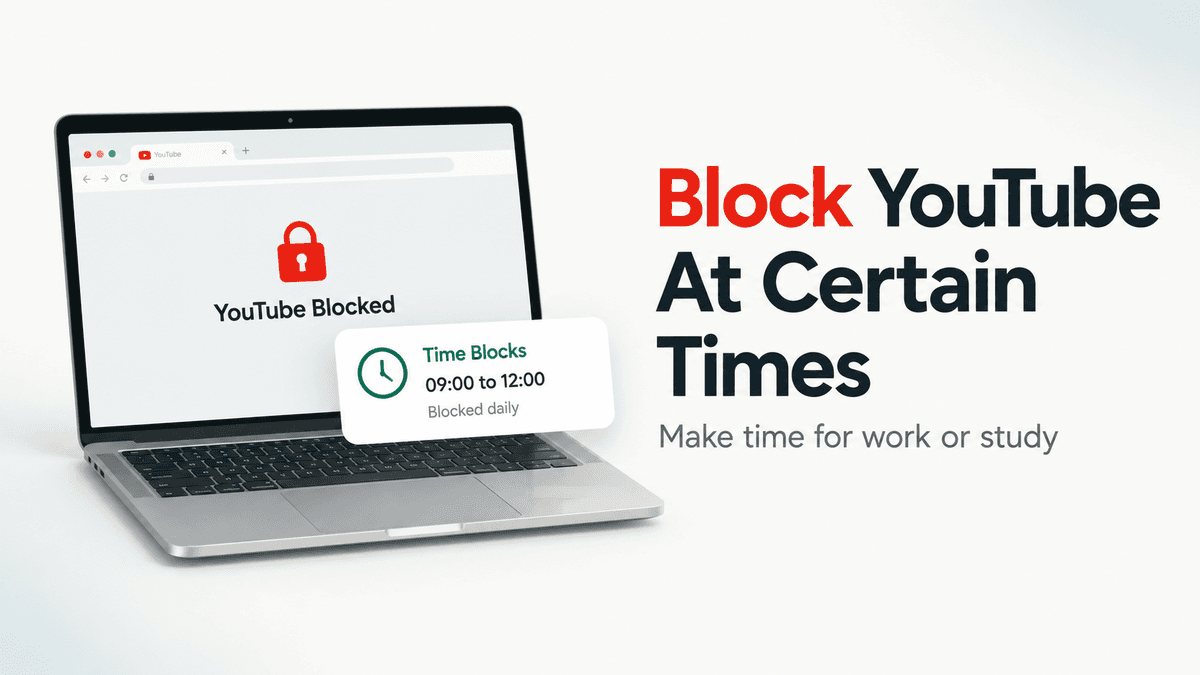
You sit down to work, open YouTube for a quick look, and end up watching through the time you meant to spend on something else. If that keeps happening at the same time of day, you can block YouTube at certain times rather than give it up completely.
The short answer: use a blocker with a schedule. In Obserra, open Settings > Limits & Breaks > Time Blocks, add a time range such as 09:00 to 12:00, and save it. With the extension installed and enabled, Time Blocks restricts YouTube video watching during that daily window in your browser.
This guide covers the setup, a few work and study schedules you can copy, and the limitations to check before choosing a tool. Obserra's current time blocks repeat every day, not just on selected weekdays.
In this guide
- How to block YouTube at certain times with Obserra
- Work and study schedules to try
- Scheduled blocks or a daily time limit?
- Other ways to schedule YouTube blocking
- What to check if your block isn't working
- Frequently asked questions
How to block YouTube at certain times with Obserra
These instructions are for watching YouTube in a browser on your computer. The download page offers Chrome and Firefox installation paths. Installing a browser extension does not put a block on the separate YouTube app on your phone or TV.
1. Create your account and install the extension
Register for Obserra, then follow the extension installation instructions for your browser. Sign in with the same account you use on the website. Use the browser you actually work in, since an extension installed in Chrome will not control a separate Firefox session.
2. Open Time Blocks
Go to Settings > Limits & Breaks. Find Time Blocks and turn it on. This is the setting for choosing hours when you don't want to watch videos.
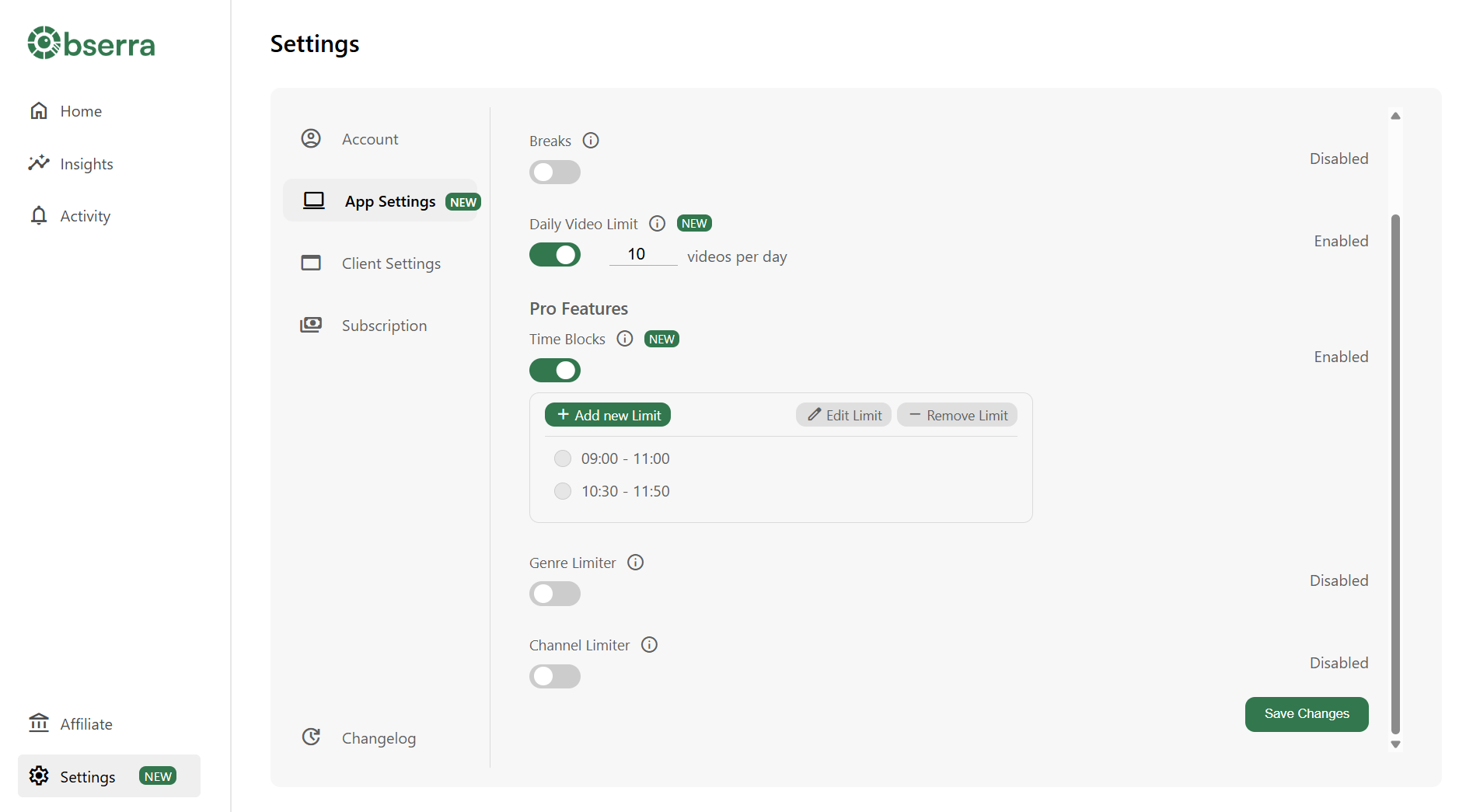
The screenshot shows an earlier settings layout, where Limits & Breaks was called App Settings. The current editor uses Add limit, Edit, and Remove.
3. Add the hours you want blocked
Click Add limit. Enter a start time in Block from and an end time in to. For a morning work session, use 09:00 to 12:00. For an afternoon study session, try 14:00 to 16:00.
The settings use 24-hour times, so 14:00 means 2 pm and 17:00 means 5 pm. You can add more than one range if you want a gap for lunch or a video you need for a course.
Each range repeats daily. There is currently no Monday-to-Friday selector, and the end time must be later than the start time. A single overnight range such as 22:00 to 07:00 will not save.
4. Save and check the block
Click Save Changes. Entering the times alone does not save your schedule. Check that Time Blocks is enabled and that your saved range appears in the list.
During the blocked window, try watching a YouTube video in the browser where you installed Obserra. Do this before relying on the schedule for an important study session. If it doesn't behave as expected, work through the checks below.
To adjust a saved range later, select its checkbox, click Edit, change the times, and save again. You can also select a range and remove it when your routine changes.
Ready to set yours up? Create your Obserra account and follow the steps above to add your first daily Time Block.
Work and study schedules to try
Start with the part of your day that YouTube interrupts most often. You may only need an hour without videos to finish the task you've been putting off.
Block YouTube during work hours, with a lunch gap
Add two ranges: 09:00 to 12:00 and 13:00 to 17:00. That leaves an hour between them if you want to watch something over lunch. If lunch videos tend to run into the afternoon, a single 09:00 to 17:00 block may suit you better.
Remember that these ranges also apply at weekends. If you need automatic weekday-only blocking, choose a scheduler that explicitly supports day selection. With Obserra's current editor, you would need to change or disable the blocks manually and save your changes.
Keep YouTube out of a study session
Try 18:00 to 19:30 for homework or revision. Put the start time slightly before you usually open your notes, so the first thing you do isn't check your subscriptions.
If your course needs YouTube tutorials, watch those before the block or leave a gap for them. Don't assume an educational video will be exempt from a Time Block. Blocking your own course material is a good way to end up switching the feature off.
Stop late-evening viewing from running on
A same-day range such as 21:00 to 23:30 can cover the hours when you usually lose track of time before bed. It ends at 23:30, though. It does not provide an overnight block through the following morning.
If you need uninterrupted blocking across midnight, look for a tool with explicit overnight scheduling support. Pick the tool around the hours you need covered, rather than relying on a workaround you haven't tested.
Scheduled blocks or a daily YouTube time limit?
A daily allowance and a schedule solve different problems. A 30-minute daily limit can still let you spend those 30 minutes watching when you should be working. A morning block protects that time, but it doesn't by itself set a cap on evening viewing.
- Choose a schedule when YouTube interrupts a particular part of your day.
- Choose a daily limit when your total watch time is the main problem, regardless of when you watch.
- Use both if you want protected work hours and a separate allowance for watching outside them.
For the allowance setup, follow our guide on how to set a daily YouTube time limit. Keep in mind that an expired Time Block does not cancel your other limits. If you've already used your daily allowance, the end of your work session doesn't give you extra watch time.
If Shorts are your only problem, you may prefer to limit or block YouTube Shorts instead of restricting regular videos during the day.
Other ways to schedule YouTube blocking
You don't have to use Obserra. The important thing is whether a tool covers the browser, app, and hours you actually use.
A website blocker with recurring schedules
If you need different rules for different days, compare blockers that offer weekday selection. Before installing one, check whether scheduling is included in its free plan, whether it handles overnight ranges, and which browsers it covers. A tool that only starts a timed focus session may not support a recurring daily schedule.
Device or parental controls
For a child's device, check the parental controls available on that device first. Look for scheduled downtime or access hours, not just a daily app allowance. Browser coverage and exceptions vary, so test both the YouTube app and website rather than assuming one setting covers them both.
Router scheduling
Some routers include scheduled website or device restrictions. If yours does, check its instructions for YouTube blocking and test the result on your network. A whole-device internet schedule may also cut off the study sites you still need, and a Wi-Fi restriction won't follow a phone onto mobile data.
For a broader comparison, see our guide to blocking YouTube on your computer. For this particular goal, make sure the method supports a schedule, rather than only an on-or-off block.
What to check if your block isn't working
Before changing all your settings, check these basics:
- The extension is in the right browser. Another browser, browser profile, or the native YouTube app is a separate place to check.
- You're signed in to the same account. Check that your extension uses the account where you saved your schedule.
- The toggle is on and the range is saved. Reopen Settings and make sure your changes are still there.
- The times are correct. Check am versus pm, and make sure the end is later than the start.
- You're testing during the range. A 14:00 to 16:00 block isn't meant to restrict viewing at 13:00.
If watching is still blocked after the range ends, check your Daily Limit and other enabled restrictions. If the schedule itself still seems wrong, contact support with your browser, the range you saved, and what happened when you tested it. Don't include your password.
Frequently asked questions
Can I block YouTube during work hours but use it in the evening?
Yes. A scheduled block restricts the hours you choose rather than setting an all-day ban. For example, a 09:00 to 17:00 Time Block leaves evenings outside that restriction. Any other enabled limits still apply.
Can I schedule YouTube blocking for weekdays only?
Some scheduling tools support selected days. Obserra's current Time Blocks repeat every day and do not have a weekday selector. Choose a tool with day selection if you need weekends handled automatically.
Does this block the YouTube app on my phone?
No. Installing Obserra in your computer's browser does not restrict the native YouTube app on another device. Use controls that support the app or device you want to manage.
Can I still watch tutorials during a blocked period?
Don't rely on tutorials being exempt. Leave time for course videos outside the blocked range, or choose a more selective restriction if you need YouTube throughout your workday.
Start with the hour you want back
Think about the last time YouTube interrupted something you meant to finish. Set a block around that part of tomorrow, then check whether it helped. You can extend the schedule later if you need to.
Create your Obserra account, install the extension, and save your first Time Block in Settings. Start with the hours you want to keep clear for work or study.
Keep Reading
Cold Turkey Alternative: Why Obserra Wins for YouTube
Cold Turkey vs Obserra: compare platforms, YouTube limits, enforcement and price, and see why Obserra is the better fit for a YouTube habit in 2026.
Read article
How to Block YouTube on a Chromebook (Personal & School)
Block YouTube on a Chromebook with an extension, Family Link, DNS or your router. Step-by-step guide, plus what works on a school-managed Chromebook.
Read article
How to Block YouTube on Windows 11 (and Windows 10)
Block YouTube on Windows 11 or 10 with an extension, Microsoft Family Safety, the hosts file or DNS. Step-by-step instructions and which method actually works.
Read article


