How to Block YouTube on Your Computer: 5 Ways That Actually Work
Learn how to block YouTube on your computer with 5 proven methods - browser extension, device settings, hosts file, or router - and take back your focus.
Content
- Introduction
- Why Blocking YouTube on Your Computer Works
- 5 Ways to Block YouTube on Your Computer
- How to Block YouTube With Obserra
- How to Make Sure YouTube Stays Blocked
- Frequently Asked Questions
- Conclusion
Introduction
You sit down at your computer to work, and within two minutes you have a YouTube tab open. One video becomes five, and suddenly an hour is gone. You didn't choose to watch. YouTube made it effortless.
This guide shows you exactly how to block YouTube on your computer, with real step-by-step instructions for five methods that work on both PC and Mac: a browser extension, built-in device settings, your hosts file, your router, and focus modes. Each one takes under 10 minutes to set up, and by the end you'll know which method fits your situation best.
Why Blocking YouTube on Your Computer Works
Every time you open YouTube, you make a small decision: watch or don't watch. When that decision happens dozens of times a day, willpower eventually loses, especially because YouTube's homepage, autoplay, and recommendations are all engineered to win that decision for you.
Blocking YouTube removes the decision entirely. Instead of fighting the urge to watch, you simply can't. It's the same reason people delete apps from their phones or leave their credit card at home: adding friction to a bad habit works far better than relying on motivation.
The key is choosing a blocking method you can't easily undo in a moment of weakness. A method that takes two seconds to disable will fail exactly when you need it most. That's the criteria we'll use for every method below.
5 Ways to Block YouTube on Your Computer
Which method is right for you depends on how completely you want YouTube gone, how much time you're willing to spend setting it up, and whether you want a total ban or some flexibility. Here are the five options, ranked from easiest to most technical:
- Browser extension: blocks YouTube in any browser, and supports schedules and limits
- Built-in device controls: free and system-wide, but blunt and browser-dependent
- Hosts file: free and works in every browser, but all-or-nothing and technical
- Router-level blocking: covers every device on your network, but only at home
- Focus modes: a useful backup layer, but won't block websites on their own
1. Use a browser extension (easiest)
A browser extension blocks YouTube directly inside Chrome, Firefox, Edge, and other major browsers, with no system settings needed. Setup takes about two minutes, and unlike the other methods, a good extension lets you do more than block outright. You can schedule blocking around work hours, set daily time limits, or block only Shorts and specific channels.
This is the best option for most people, and it's how Obserra works. We'll walk through the full setup in the next section.
2. Use built-in device controls
Both Windows and macOS include free website restrictions, though both are designed for parental control rather than self-control.
On Mac: Open System Settings > Screen Time > Content & Privacy, turn it on, then go to Content Restrictions > Web Content > Limit Adult Websites. Under "Never Allow", add youtube.com and www.youtube.com. This blocks YouTube in Safari immediately.
On Windows: Website filtering requires a Microsoft Family Safety account. Create a family group at family.microsoft.com, add your Microsoft account, and enable web filtering for Edge.
The catch: macOS Screen Time restrictions only apply to Safari and WebKit-based browsers, and Windows Family Safety filtering only works in Edge. If you browse in Chrome, these settings won't stop you, which makes them better suited for restricting a child's device than your own.
3. Edit your hosts file
Your computer's hosts file maps website addresses to IP addresses before your browser ever contacts the internet. Pointing YouTube's domains at your own machine makes every browser on the computer fail to load it. It's free, works in every browser, and takes effect immediately.
On Windows:
- Open Notepad as administrator (right-click Notepad > Run as administrator).
- Open the file at C:WindowsSystem32driversetchosts.
- Add these lines at the bottom, then save:
127.0.0.1 youtube.com
127.0.0.1 www.youtube.com
127.0.0.1 m.youtube.com
127.0.0.1 music.youtube.com - Open Command Prompt and run ipconfig /flushdns to apply the change.
On Mac: Open Terminal and run sudo nano /etc/hosts, add the same four lines, save with Ctrl+O, then run sudo dscacheutil -flushcache; sudo killall -HUP mDNSResponder to apply.
The downsides: it's all-or-nothing (no schedules or limits), you'll need to repeat the process in reverse when you want YouTube back, and there's nothing stopping you from undoing it in a moment of weakness.
4. Block YouTube on your router
Router-level blocking applies to every device connected to your Wi-Fi, including computers, phones, tablets, and smart TVs. Log in to your router's admin page (usually 192.168.1.1 or 192.168.0.1; check the label on the router) and look for Parental Controls, Website Blocking, or Access Restrictions. Add youtube.com to the blocked list.
The limitations: the block disappears the moment you leave your home network, it affects everyone in the house, and it can't tell the difference between work hours and free time. It's a good layer for a household, but not a complete solution for your own focus.
5. Use focus modes as a backup layer
Windows Focus sessions and macOS Focus modes silence notifications and reduce distractions, but neither blocks specific websites like YouTube on their own. They're worth using alongside one of the methods above. For example, you could pair a macOS Work Focus with Obserra's Time Blocks so both notifications and YouTube disappear during work hours.
Which method should you use?
- You want to block YouTube during work hours but still use it sometimes: use a browser extension with schedules (Obserra). Being able to block only Shorts, specific channels, or a set amount of time per day instead of banning YouTube outright makes the block much easier to live with, and that's what makes it stick long term.
- You want YouTube gone completely, right now, in every browser: edit your hosts file.
- You want to protect a child's device: use Screen Time (Mac) or Family Safety (Windows).
- You want to cover the whole household, all devices: block YouTube on your router, ideally combined with a browser extension on your own computer.

How to Block YouTube With Obserra
If you chose the extension route, here's how to block YouTube on your computer with Obserra in three steps. The whole setup takes about five minutes, and unlike editing your hosts file or router settings, you can adjust your limits anytime without touching technical configurations.
-
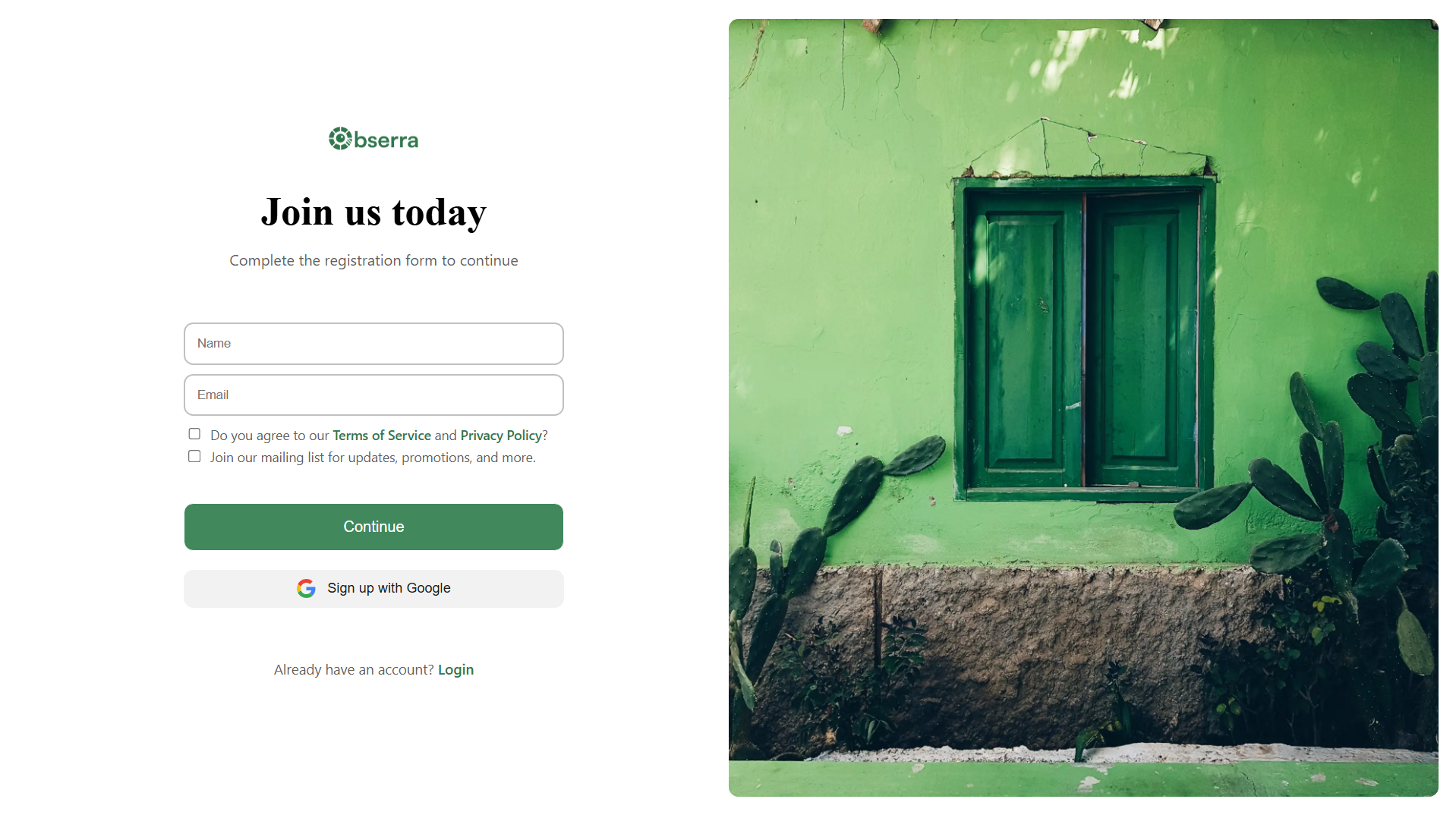
Create an account. Visit obserra.com and register with your email or your Google account.
-
Choose how you want YouTube blocked. Head to the settings page and pick the approach that fits your situation:
- Time Blocks: Block YouTube completely during specific hours, like 9 to 5 on workdays, while keeping evenings free.
- Daily Limit: Allow yourself a set amount of YouTube time per day, then have it blocked once you hit the limit.
- Daily Video Limits: Instead of limiting minutes, limit the number of videos you can watch per day, which is ideal for breaking the "just one more video" loop.
- Channel and genre limits: Block or limit only the specific channels or types of videos that eat most of your time, so useful content still works.
-
Install the extension. Visit the download page and install the Obserra extension for your browser. Once installed, the limits you just configured are enforced on YouTube automatically.
That's it. Create your free account now and YouTube will be blocked on your computer within the next five minutes.
How to Make Sure YouTube Stays Blocked
Any blocker can be undone. The goal is to make undoing it annoying enough that you don't do it impulsively. A few tips that help:
- Block during your danger hours: Use Time Blocks for the hours you procrastinate most, rather than blocking everything around the clock. A schedule you can live with is one you won't disable.
- Start with a limit, not a full block: Going from two hours to zero usually fails. Start with a daily limit you can accept, then reduce it week by week.
- Keep a deliberate exception: If you use YouTube for tutorials or work, use channel limits to block the distracting genres while keeping the useful ones available.
- Track what changes: Check your usage on the insights page after a week. Seeing the hours you got back is the best motivation to keep your blocks in place.
Frequently Asked Questions
Can I block YouTube on Chrome without an extension?
Chrome has no built-in website blocker for adults. Without an extension, you'd need to edit your hosts file, use OS-level parental controls, or block YouTube on your router. An extension like Obserra is the fastest and most flexible option.
How do I block YouTube on my computer but not my phone?
Hosts-file and router methods tend to be all-or-nothing across devices, but Obserra gives you a choice. Install the extension only in the browser you use on your computer and the block stays there, while your phone is untouched. If you later decide you want protection on your phone too, the same account and limits work across your devices, so you don't have to set everything up twice.
Can I block YouTube only during work hours?
Yes. Obserra's Time Blocks let you block YouTube on specific days and times, such as weekday work hours, while leaving evenings and weekends open.
Can I block YouTube Shorts but still watch regular videos?
Yes. Obserra lets you set a daily Shorts limit or disable Shorts entirely while leaving normal videos alone, which is ideal if short-form content is your main time sink.
Is blocking YouTube better than just using self-control?
Research on habit change consistently shows that adding friction beats willpower. Blocking doesn't mean never watching YouTube. It means watching on your terms instead of the algorithm's.
Conclusion
Blocking YouTube on your computer works because it removes the dozens of small daily decisions that drain your willpower. The hosts file is the fastest way to make YouTube disappear completely, device controls work well for a child's Mac or PC, and your router can cover the whole household. But if you want blocking you can actually live with, an extension with schedules and limits is the strongest choice.
Create your free Obserra account to block YouTube during work hours, set a daily limit that shrinks week by week, or block Shorts and specific channels, and take back the hours YouTube was taking from you.
Keep Reading
How to Block YouTube at Certain Times for Work or Study
Learn how to block YouTube at certain times for work or study. Set up daily schedules, leave room for breaks, and check which options work on your device.
Read article
A Simple Daily Routine to Limit YouTube Shorts and Improve Focus
A simple daily routine to limit YouTube Shorts and improve focus. Exact times, limits, and tools to make every step automatic and stop losing hours.
Read article
Can You Stop Watching YouTube Shorts? What New Brain Research Says
A 2026 fMRI study examined immersive short-video viewing. Learn what the research found, what it does not prove, and practical ways to limit YouTube Shorts.
Read article


