How to Block YouTube on a Chromebook (Personal & School)
Block YouTube on a Chromebook with an extension, Family Link, DNS or your router. Step-by-step guide, plus what works on a school-managed Chromebook.
A Chromebook is basically a browser with a keyboard. That's what makes it fast, and it's also why YouTube is so easy to fall into: there's no desktop app to avoid, just a tab that opens in under a second. Blocking it should be simple. On ChromeOS, it isn't, because the usual tricks don't all apply.
What works: on a personal Chromebook, the most practical option is a browser extension in Chrome, because it can enforce limits and schedules without blocking the rest of the web. If you're restricting a child, use Google Family Link, which can block YouTube for a supervised account. If the Chromebook belongs to a school, only the school's administrator can enforce a block that sticks.
This guide shows how to block YouTube on Chromebook in each case, plus the two ChromeOS quirks that quietly undo most blocks: guest browsing and managed device policies.
On this page
- Why Chromebooks are different
- Method 1: Block YouTube on Chromebook with Obserra
- Method 2: Use Google Family Link
- Method 3: Block it with DNS or your router
- Method 4: School-managed Chromebooks
- How the block gets bypassed
- Personal Chromebook or school device?
- If Shorts are the only issue
- Frequently asked questions
Why Chromebooks are different
On Windows and macOS you can edit a hosts file or use system-level parental controls. ChromeOS doesn't give you either in the usual sense. There's no editable hosts file unless you enable developer mode, which wipes the device and turns off important security protections, so it isn't a practical answer for most people.
What ChromeOS does have is Chrome, and Chrome extensions work well. That makes an extension the natural first choice for a personal Chromebook. The second thing to understand is ownership: a school-issued Chromebook is managed by the school's Google Admin console, and policies set there override anything you do locally. If the device is managed, your options are much narrower.
If you're on a Mac or Windows PC instead, our guides to blocking YouTube on a Mac and blocking YouTube on Windows cover the native options.
Method 1: Block YouTube on Chromebook with Obserra
Obserra is a free extension for Chrome, including Chrome on ChromeOS. It's the best option on a personal Chromebook because it can do more than block the whole site: you can cap your watch time, block YouTube during work or study hours, limit specific channels, or remove the parts of YouTube that pull you in.
-
Create your account. Register at obserra.com with your email or Google account.
-
Install the extension. Open the download page on your Chromebook and add Obserra to Chrome. Sign in with the same account you just created.
-
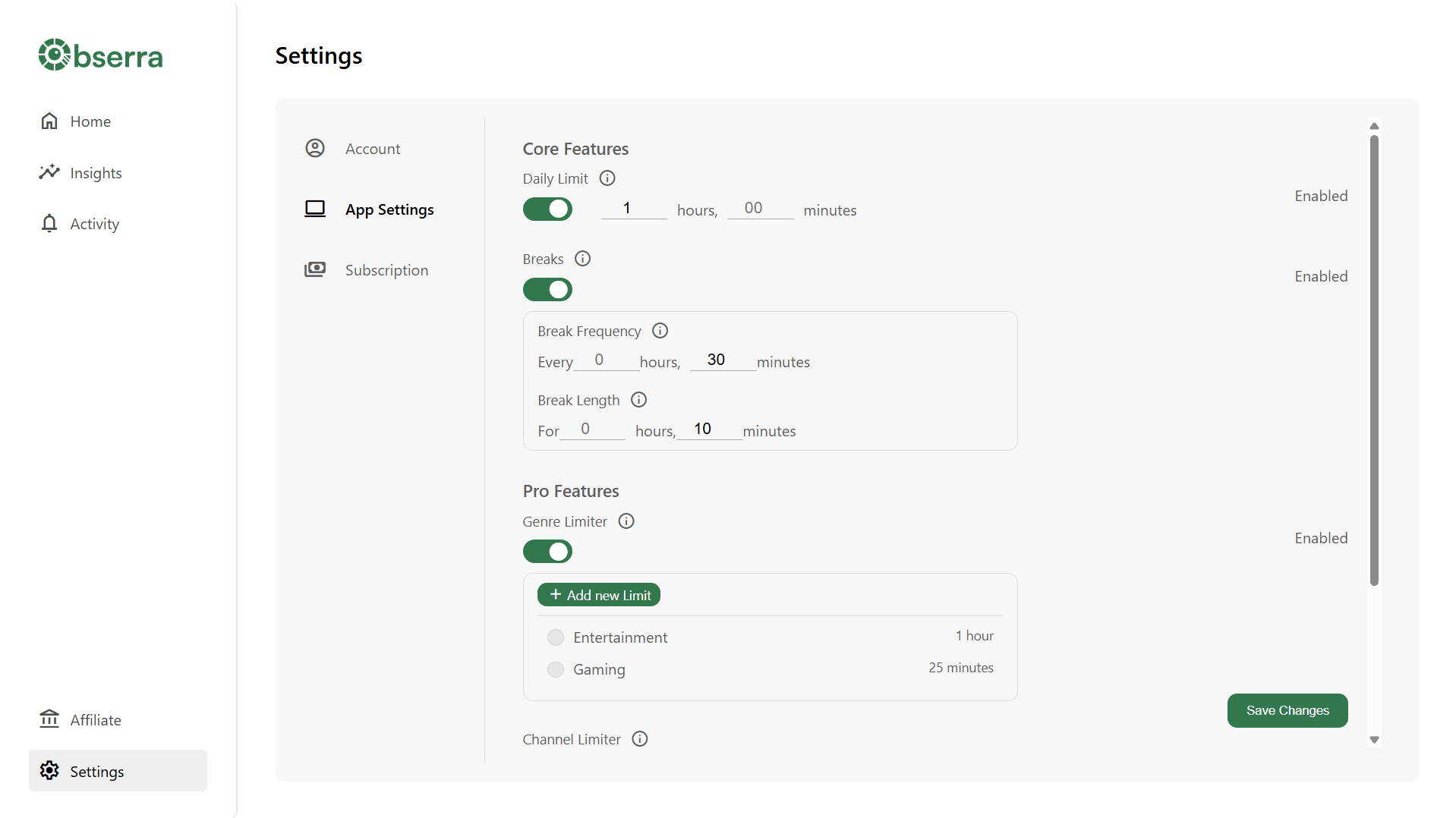
Choose how YouTube should be blocked. Open the settings page and enable the option that matches your problem:
- Daily Limit caps your total watch time for the day.
- Daily Video Limit caps the number of videos instead of the minutes.
- Time Blocks block YouTube during hours you choose, such as 09:00 to 17:00.
- Channel and genre limits restrict only the channels or types of content that consume most of your time.
- Client Modifications hide the homepage feed, sidebar suggestions, end screens and Shorts.
-
Test it. Open YouTube in Chrome and check the limit applies. If you set a Time Block, test during the blocked hours rather than outside them.
One ChromeOS-specific caveat: extensions don't run in Guest mode. If guest browsing is enabled on your Chromebook, anyone can bypass the extension by signing out and choosing "Browse as Guest". On a personal device, turn guest browsing off in Settings > Privacy and security > Manage other people. On a managed school device, you can't change that setting; the school controls it.
Ready to set it up? Create a free Obserra account, install the extension in Chrome, and choose your first limit.
Method 2: Use Google Family Link
Family Link is the right tool if you're restricting a child's Chromebook. It works through the child's supervised Google account, so it follows them across Chrome and supported Android apps rather than depending on one browser window.
- Open the Family Link app, or go to families.google.com, and select your child.
- Tap Controls, then Google Chrome and Web.
- Choose a filter level. Only allow approved sites is the strict option; Allow all sites lets you block individual sites instead.
- Under Manage sites, open Blocked sites and add youtube.com as a domain. Adding the domain covers subdomains such as m.youtube.com and www.youtube.com, which a single URL entry would miss.
- Test it on the Chromebook while signed in as your child. If YouTube still opens, check that the device is using the supervised account and that the setting has synced.
Two things make Family Link more reliable than a browser extension for children. Incognito mode is turned off for accounts managed by Family Link, and you can control whether your child is allowed to install extensions from the Chrome Web Store at all. Both close the obvious escape routes.
The limitation is who it's for. Family Link manages child accounts, not your own adult account. If you're trying to restrict yourself, use Obserra or one of the network-level options below.
Method 3: Block it with DNS or your router
Because ChromeOS doesn't have an editable hosts file, the network is the next best place for a system-wide block. There are two versions of this.
Change the DNS on the Chromebook
Open Settings > Network, select your Wi-Fi network, open its network settings, and set custom name servers to a filtering DNS provider. A family-filtering DNS service will block YouTube across Chrome on that network without installing anything. The catch is that anyone who can open the network settings can change it back, and it only applies while the Chromebook is on that network.
Block YouTube on the router
Log in to your router's admin page and look for Parental Controls, Website Blocking or Access Restrictions. Add youtube.com to the blocked list. This covers every device on the Wi-Fi, which is useful for a household and overkill for one person. It also disappears the moment the Chromebook connects to another network or a phone hotspot.
Method 4: School-managed Chromebooks
If the Chromebook was issued by a school, the honest answer is that you probably can't block YouTube on it yourself, and you shouldn't try. Managed Chromebooks receive policies from the school's Google Admin console. Those policies can block extensions, disable guest mode, restrict sign-in, and block URLs at the network or device level. Anything you change locally is either overridden or reset.
The school can also enable YouTube Restricted Mode, which limits students to approved or restricted videos without blocking YouTube entirely. If the goal is "less YouTube during class", that's a conversation with the school's IT administrator, not a settings change on the device.
What you can do depends on the policy. A browser extension may not install at all, and developer mode is usually disabled. If you need a block on a device you own, use a personal Chromebook or a personal account on a personal device rather than fighting the school's management.
How the block gets bypassed
Most failed Chromebook blocks come down to one of these:
- Guest mode. Guest sessions don't load your extensions, so an extension-only block disappears. Disable guest browsing on a personal Chromebook.
- Another browser profile. Extensions and settings are per profile. If a second profile exists, it has its own setup.
- Incognito. Extensions only run in Incognito if you explicitly allow them. Check the extension's details page and enable it there if you need the block to hold.
- The school account. Managed policies follow the account, not the device. Signing in with a different account can change what applies.
- Another network. DNS and router blocks stop at the edge of that network. A phone hotspot gets around them.
Personal Chromebook or school device?
- Personal Chromebook, restricting yourself: use Obserra. It's the only option here with limits, schedules and Shorts controls.
- Personal Chromebook, restricting a child: use Family Link with the supervised account, and disable guest browsing.
- Whole household: block YouTube at the router or with a filtering DNS service.
- School-issued Chromebook: talk to the school's IT administrator; local changes won't stick.
If Shorts are the only issue
On a personal Chromebook, disable Shorts in Chrome and leave long-form videos alone; you can still use search and subscriptions. On a school-managed device you probably can't install the extension, so ask the administrator about YouTube Restricted Mode or URL blocking instead.
For the personal-device setup, see how to limit and block YouTube Shorts and how to block YouTube recommendations.
Frequently asked questions
Can I block YouTube on a Chromebook without an extension?
Yes, but the options are limited. You can use Family Link for a child's supervised account, change the DNS on the Chromebook, or block YouTube on your router. ChromeOS doesn't have an editable hosts file unless you enable developer mode, which isn't recommended.
Why doesn't my extension work in Guest mode?
Guest sessions don't load installed extensions, so any extension-based block is bypassed. On a personal Chromebook, turn off guest browsing in Settings > Privacy and security > Manage other people. On a school device, only the administrator can change it.
Can I block YouTube on a school Chromebook?
Usually not yourself. School-issued Chromebooks are managed by the school's Google Admin console, which can block extensions, URLs and guest mode. Ask the school's IT administrator; local changes are typically overridden or reset.
Does Family Link block YouTube in Chrome on a Chromebook?
Yes. Family Link's Google Chrome and Web controls can block youtube.com for a supervised child account, including subdomains if you add it as a domain. It also turns off Incognito for that account.
Can I block YouTube only during school or work hours?
Yes, with Obserra's Time Blocks. Set a range such as 09:00 to 17:00 and YouTube is blocked in Chrome during those hours. See our guide to blocking YouTube at certain times.
Does a DNS block work outside my home network?
No. A custom DNS setting only applies on the network where it's configured, and a router block only covers devices on that router. A phone hotspot or another Wi-Fi network gets around it.
Block the tab, not the whole internet
Blocking YouTube on a Chromebook comes down to ownership. On your own device, install Obserra, set a limit or a work-hours block, and turn off guest browsing so the block can't be sidestepped. If it's a child's Chromebook, Family Link is the sturdier choice because it lives at the account level. And if the device belongs to a school, the only reliable fix is a request to the people who manage it.
Create a free Obserra account, install the extension in Chrome on your Chromebook, and set your first limit. It takes about five minutes, and you can adjust it when your schedule changes.
Keep Reading
How to Block YouTube on Windows 11 (and Windows 10)
Block YouTube on Windows 11 or 10 with an extension, Microsoft Family Safety, the hosts file or DNS. Step-by-step instructions and which method actually works.
Read article
How to Block YouTube on a Mac (Safari, Chrome and System-Wide)
Block YouTube on your Mac in Safari, Chrome or every browser. Compare Screen Time, the hosts file and a browser extension, with step-by-step instructions.
Read article
How to Block YouTube Recommendations (Homepage, Sidebar and End Screens)
YouTube has no single switch to block recommendations. Here's how to remove the homepage feed, sidebar suggestions and end-screen videos on desktop and mobile.
Read article


